Sage Intacct Sync Guide: Create a Clearing Account in Intacct
If you've set debits and credits to your bank account to show as consolidated for each day, then to simplify reconciliation, Bill Manager makes use of two clearing accounts, the Bill Manager Money Out Clearing Account (Accounts Payable) and the Bill Manager Money In Clearing Account (Accounts Receivable). To properly integrate with Sage Intacct and Bill Manager, these will need to be created as checking accounts in Sage Intacct and mapped to a corresponding GL account.
Bill Manager Money Out Clearing account
If using Accounts Payable in Bill Manager, create the Bill Manager Money Out Clearing Account as a checking account in Sage Intacct and associate it with a corresponding GL Account.
NOTE: If multiple Bill Manager accounts will be syncing to the same Sage Intacct environment, a separate Bill Manager Money Out Clearing Account will need to be created for each entity. Best practice is to include the Entity ID in the Bank name (e.g. Bill Manager Money Out Clearing - US).
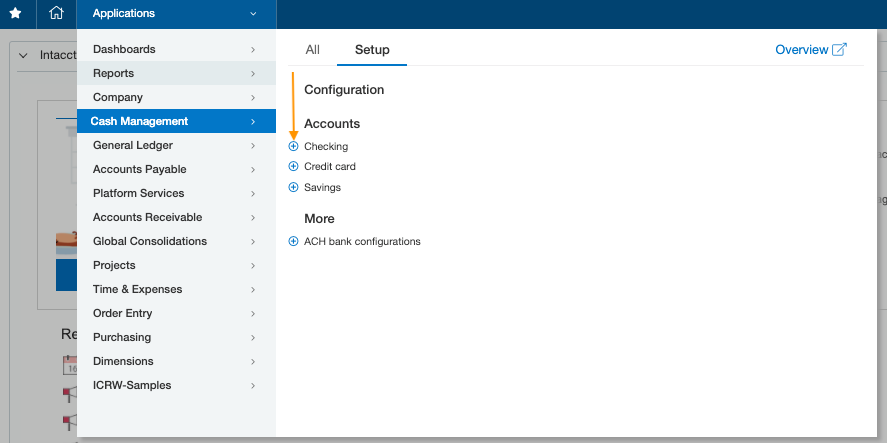
- At the Root/Top Level in Sage Intacct, navigate to Cash Management > Checking Accounts > Add
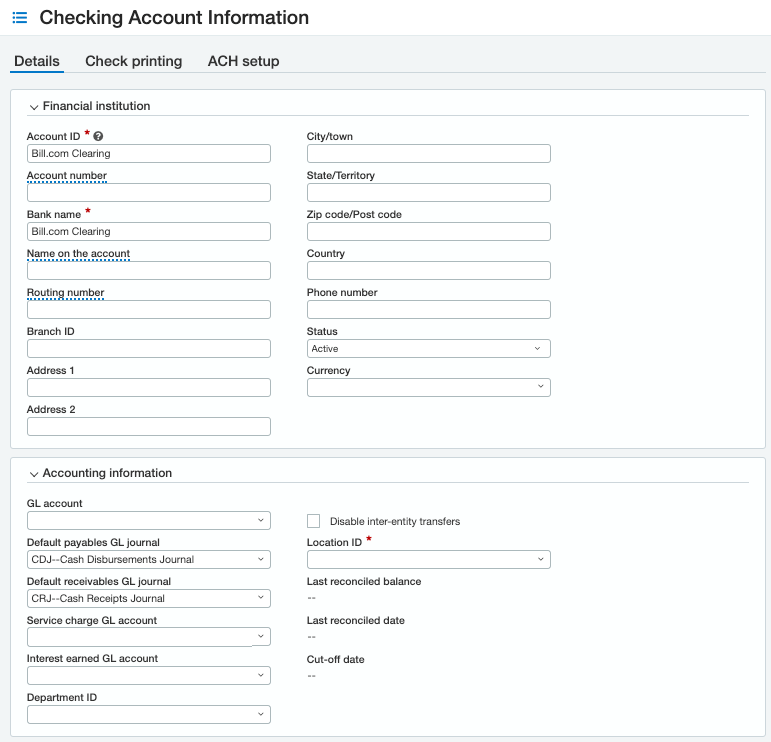
- Under Financial institution, enter the following field values:
- Account ID: Bill Manager Clearing
-
Bank name: Bill Manager Money Out Clearing
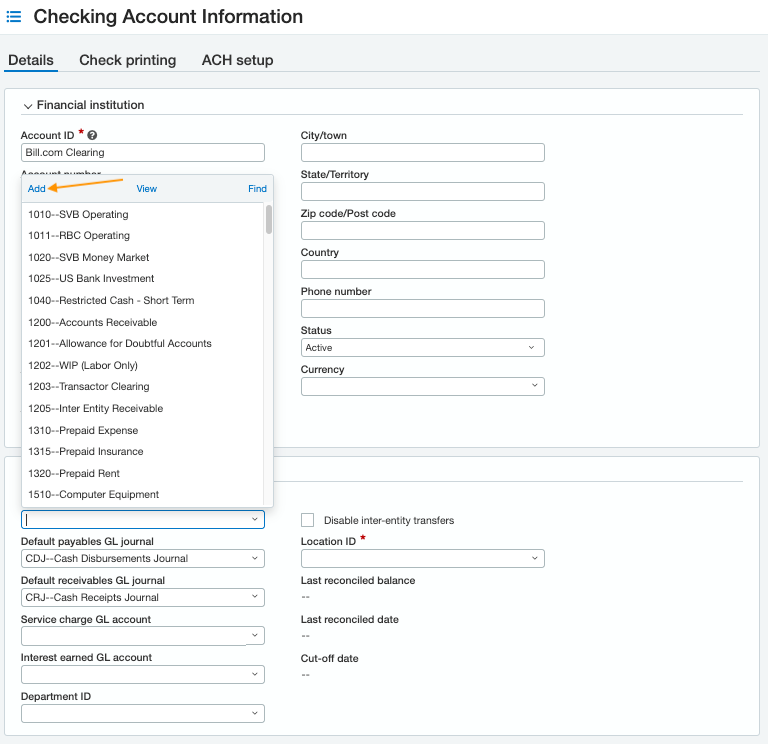
- Under Accounting information, select the GL account drop-down menu and select Add
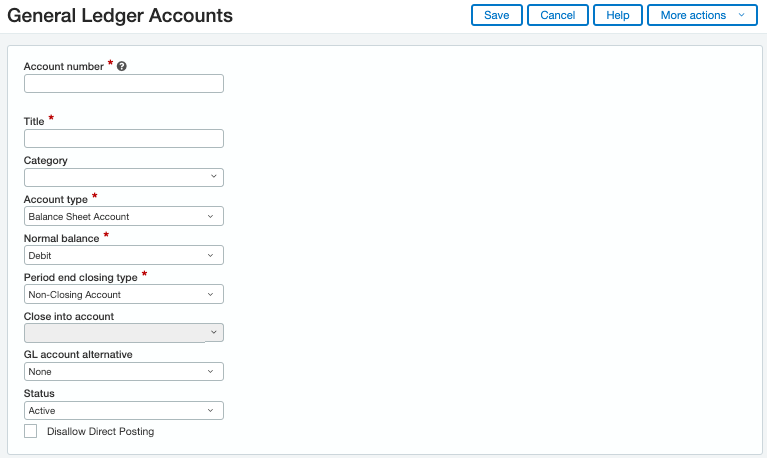
- Enter the following field value:
- Primary/Sub Account Number: Use any available GL account number
- Title: Bill Manager Money Out Clearing
- Account Type: Balance Sheet Account
- Normal Balance: Debit
- Period End Closing Type: Non-Closing Account
-
Dimension settings: Do not select any dimension settings
- Select Save
- If using a multi-entity Sage Intacct environment, select the Entity/Location ID that corresponds to this bank account
- With single-entity Sage Intacct environments, inter-entity (company) transfers are not required. Check the Disable inter-entity transfers box.
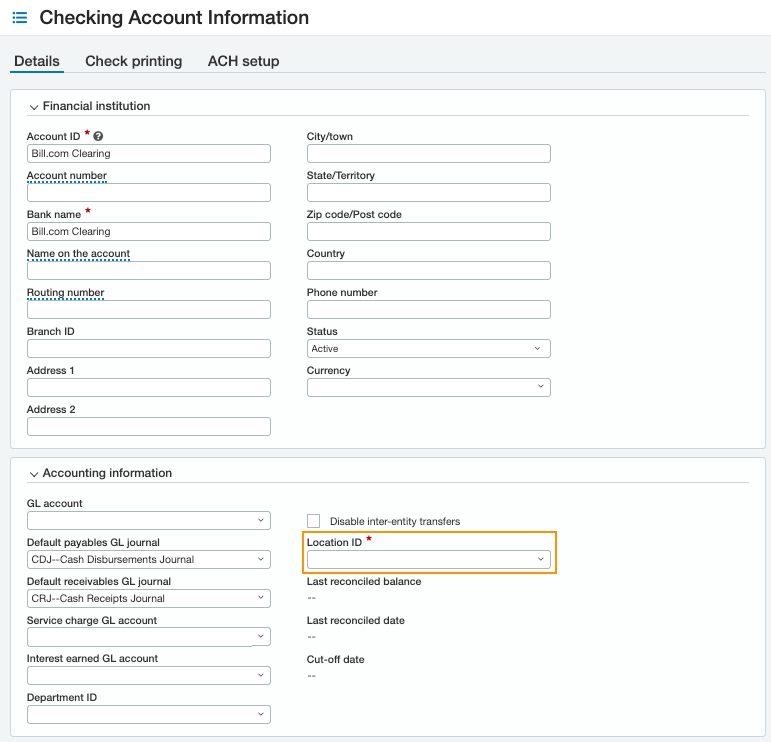
- With single-entity Sage Intacct environments, inter-entity (company) transfers are not required. Check the Disable inter-entity transfers box.
- Select Save
Bill Manager Money In Clearing account
If using Accounts Receivable in Bill Manager, create the Bill Manager Money In Clearing Account as a checking account in Sage Intacct and associate it with a corresponding GL Account.
NOTE: If multiple Bill Manager accounts will be syncing to the same Sage Intacct environment, a separate Bill Manager Money In Clearing Account will need to be created for each entity. Best practice is to include the Entity ID in the Bank name (e.g. Bill Manager Money In Clearing - US).
- At the Root/Top Level in Sage Intacct, navigate to Cash Management > Checking Accounts > Add

- Under Financial institution, enter the following field values:
- Account ID: Bill Manager Clearing
-
Bank name: Bill Manager Money In Clearing
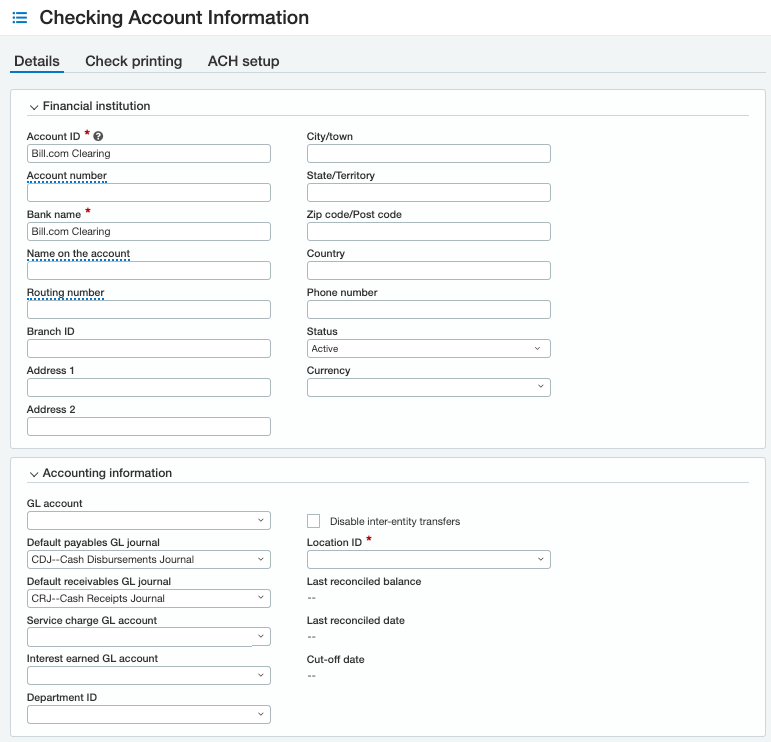
- Under Accounting information, select the GL account drop-down menu and select Add
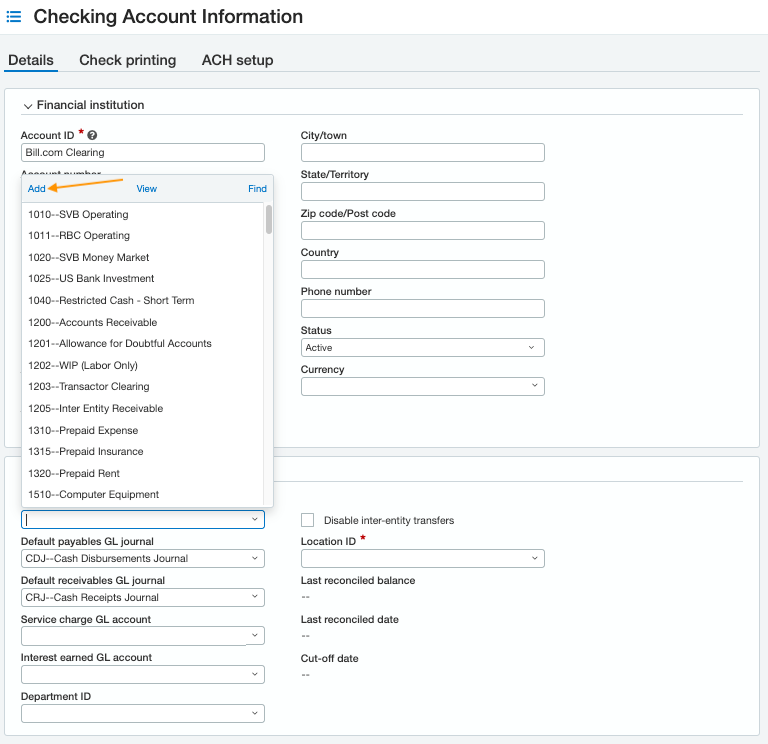
- Enter the following field values:
- Primary/Sub Account Number: Use any available GL account number
- Title: Bill Manager Money In Clearing
- Account Type: Balance Sheet Account
- Normal Balance: Debit
- Period End Closing Type: Non-Closing Account
-
Dimension settings: Do not select any dimension settings
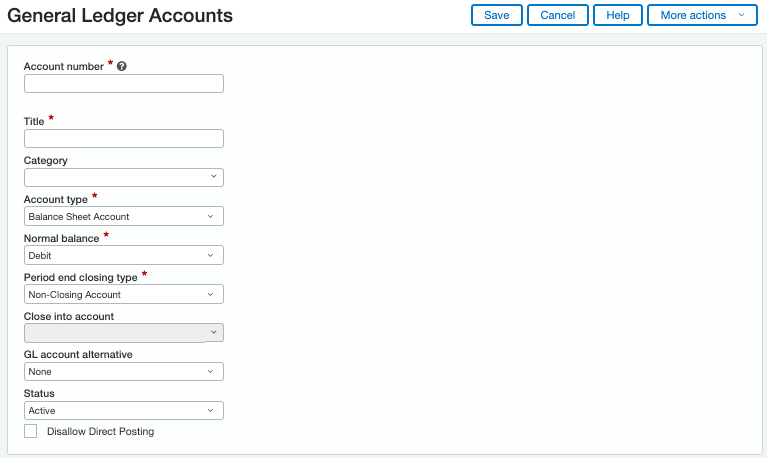
- Select Save
- If using a multi-entity Sage Intacct environment, select the Entity/Location ID that corresponds to this bank account
- With single-entity Sage Intacct environments, inter-entity (company) transfers are not required. Check the Disable inter-entity transfers box.
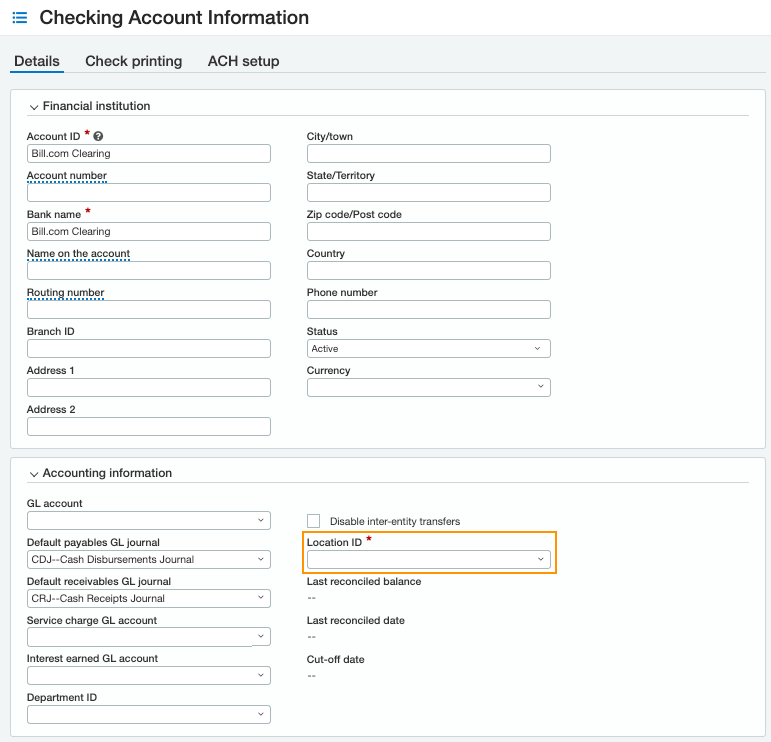
- With single-entity Sage Intacct environments, inter-entity (company) transfers are not required. Check the Disable inter-entity transfers box.
- Select Save

Resources
Inbox View all
Getting Paid (Receivables) View all