Sage Intacct sync guide: Requirements for Sage Intacct settings
Table of Contents
-
Cash Management
- Accounting
-
Accounts Payable
- Accounting settings
- Enable functionality
- 1099's
- Payment approval settings
- Document sequencing
-
Accounts Receivable
- Accounting settings
The following article highlights the required settings per module in Sage Intacct. These settings are required in order to avoid sync errors and optimize the integration between Bill Manager and Sage Intacct.
Cash Management
In Sage Intacct, navigate to Cash Management > Setup > Configuration and set the following preference:
Accounting
- Deselect Account labels
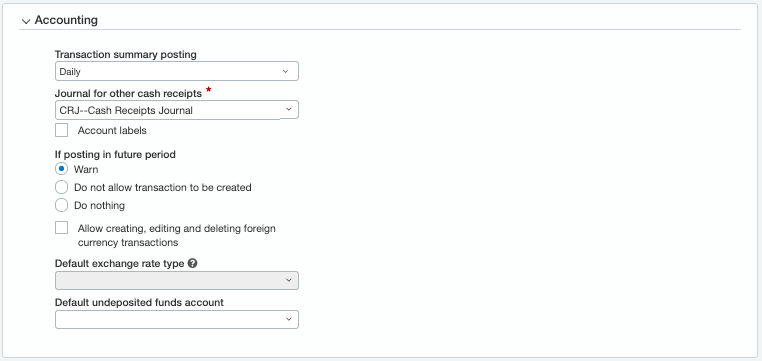
- Select Save
Accounts Payable
In Sage Intacct, navigate to Accounts Payable > Setup > Configuration and set the following preferences:
Accounting settings
Set Summary frequency fields to Daily or Monthly

Enable functionality
- Ensure Enable account labels is deselected
- Ensure Enable reclassification for bills and adjustments is checked
- Ensure Enable reversal of unpaid bills is deselected
- This will ensure that updates to unpaid bills are able to sync from Bill Manager to Sage Intacct
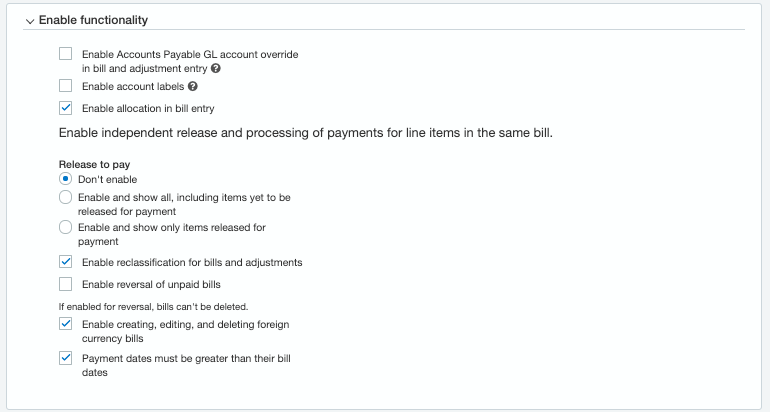
- This will ensure that updates to unpaid bills are able to sync from Bill Manager to Sage Intacct
1099's
Select Enable 1099 flag override

Payment approval settings
Ensure Enable AP Payments approval is deselected

Document sequencing
If using Vendor Sequence numbering, you’ll need to enable auto-numbering in Bill Manager. To determine whether Vendor Sequence numbering is used:
- In Sage Intacct, go to Accounts Payable > Setup > Configuration
- Under Document sequencing, select Vendors
- If this field is blank, no Vendor ID sequence is being used and Vendor IDs are entered manually
If using Vendor Sequence numbering, enable auto-numbering in Bill Manager:
- In Bill Manager, select settings
- Under Accounting, select Preferences
- Select Edit
- For Vendor Sequence Id, select Use auto-numbering
- Save
Once all Accounts Payable preferences have been set, select Save
Accounts Receivable
In Sage Intacct, navigate to Accounts Receivable > Setup > Configuration and set the following preferences:
Accounting settings
- Set Summary frequency fields to Daily or Monthly
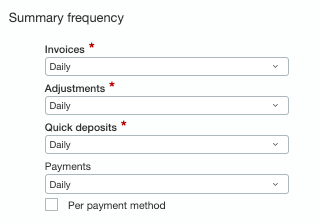
- Select Save
Inbox View all
Getting Paid (Receivables) View all