Xero sync setup guide and video tutorial
This guide will walk through setting up the sync with Xero.
To watch a video of the sync setup with Xero see Bill Manager Xero self-guided setup.
Table of Contents
Sync Overview
The following image shows what objects sync and in which direction.

Pre-setup requirements
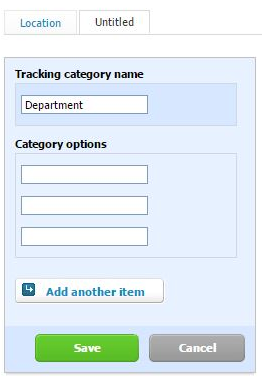
Tracking Categories
- If using Locations and/or Departments, they must be named Location and Department within Xero to ensure proper sync.
Connect the Sync
- Select the sync icon
- Select Setup
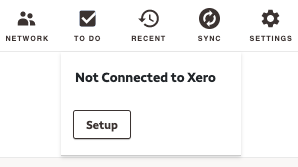
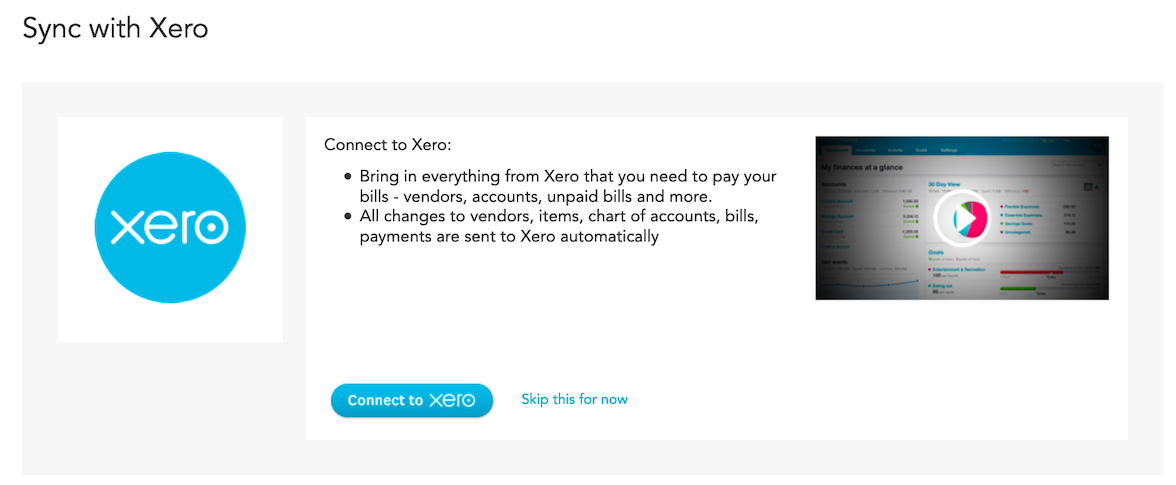
- Select Connect to Xero
- Enter Xero login credentials
- Select the Xero company to sync with, select Allow access
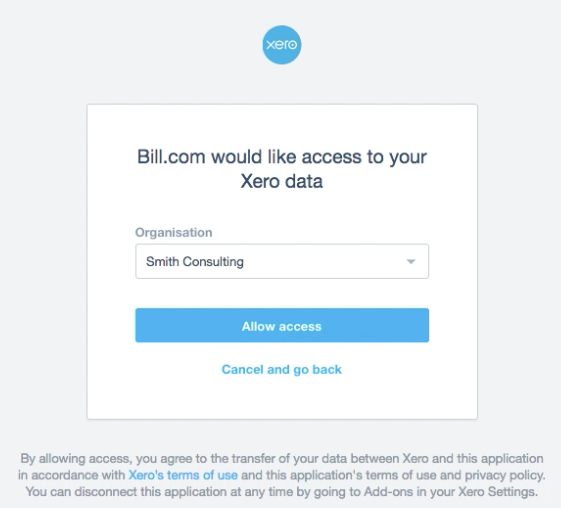
- Select simple sync preferences
The sync is now connected.
Accounting Preferences
To set up accounting preferences for reporting and tracking:
- Select Settings in the navigation menu
- Under Accounting, select Preferences
- Set preferences
- Select Save
- Select the sync icon and Sync Now to run another sync
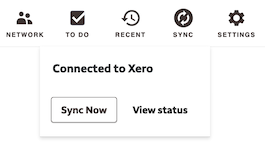
The sync setup is now complete.
Inbox View all
Getting Paid (Receivables) View all